
What is a craft file format: a crafter's guide
TL;DR:
- A craft file format is a digital type that stores design data for use with crafting machines like cutters and 3D printers. Choosing the appropriate format, such as SVG or STL, ensures designs cut, print, or import correctly for specific projects. Proper understanding of these formats prevents wasted materials and project failures in digital crafting.
A craft file format is a specific digital file type that stores design data for use with crafting machines and tools such as cutting machines, laser cutters, 3D printers, and printable project templates. Formats like SVG, DXF, PDF, STL, and 3MF each serve distinct purposes across different crafting technologies. Choosing the wrong format can mean your design fails to cut, print, or import correctly. Whether you are creating paper cards, vinyl decals, or 3D printed decorations, understanding which file type suits your machine and project is the foundation of successful digital crafting.
What is a craft file format and why does it matter?
A craft file format is the container that holds your design’s geometry, colour, paths, and metadata in a way that a specific machine or software can read and act upon. Think of it like a language. Your Cricut machine speaks SVG fluently, but it may struggle with a format designed for a 3D printer. Getting this right from the start saves you time, materials, and frustration.
The term “craft file format” is an informal, descriptive phrase used widely in the hobbyist community. The recognised industry terms are vector file formats, raster file formats, and 3D model file formats, depending on the technology involved. Both sets of terms are useful, and you will encounter both when researching your machine’s requirements.
Understanding craft file formats is not just a technical exercise. It directly affects whether your finished project looks the way you intended. A mismatched file type can distort paths, strip out colour information, or cause a machine to ignore entire sections of your design.
What are the most common craft file formats and their uses?
The crafting world uses a surprisingly wide range of file types. Each one was built for a specific purpose, and knowing what each does will help you pick the right one every time.
SVG: the standard for cutting machines
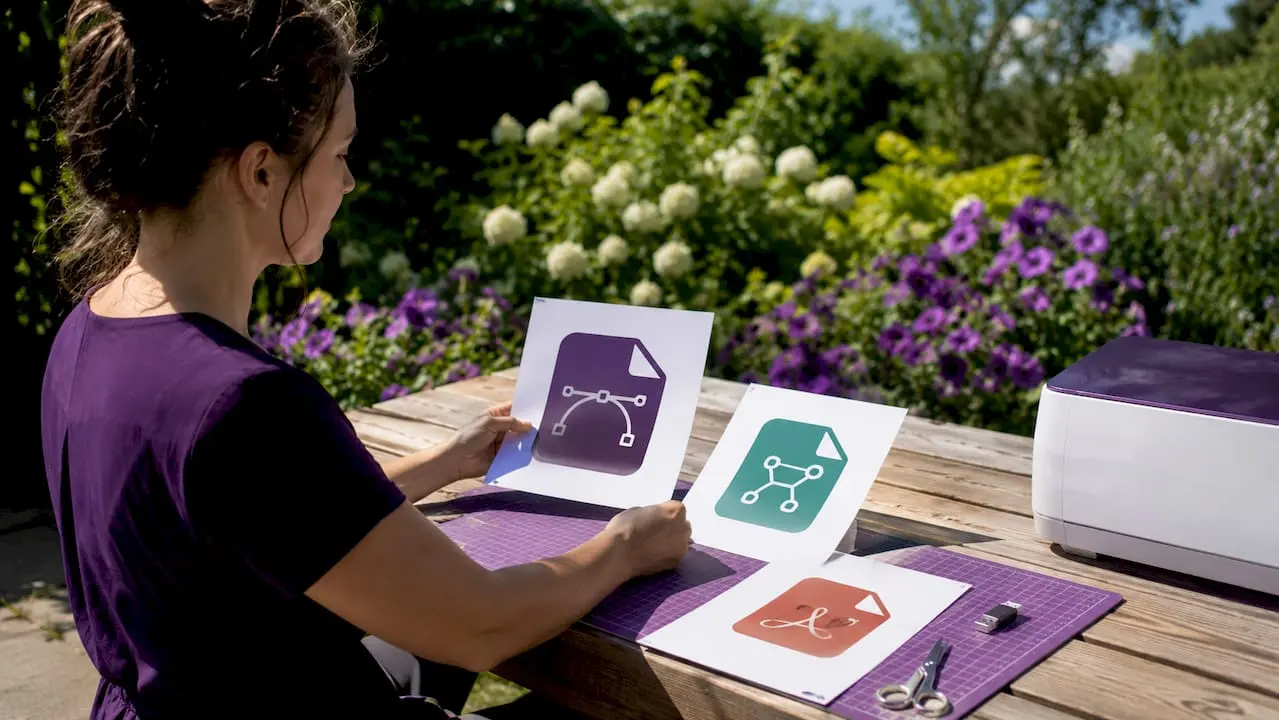
SVG is the industry standard for vector-based cutting machines such as Cricut and Silhouette. SVG stands for Scalable Vector Graphics. It stores paths, shapes, and colours as XML code, which means the design can be scaled to any size without losing quality. Cricut Design Space and Silhouette Studio both import SVG natively, making it the go-to choice for vinyl cutting, card making, and paper crafting. You can find a wide range of ready-to-use SVG cutting files on Craftsuprint, designed specifically for popular cutting machines.
DXF: geometry without colour
DXF files remain popular for compatibility with legacy CAD, CNC, and laser cutting systems. DXF describes pure geometry: lines, arcs, and polylines. It carries no colour or fill information. This makes DXF reliable for machines that only need to know where to cut, not what colour to apply. Laser cutters and CNC routers frequently accept DXF alongside SVG.
PDF: the printable pattern workhorse
PDF format can include vector paths, raster images, or text, making it the most versatile container for printable craft patterns and instructional templates. A PDF from Craftsuprint might contain a full card-making kit with layered elements, assembly instructions, and decorative borders all in one file. The catch is that PDFs are not always suitable for automated cutting. Whether a PDF works with a cutting machine depends entirely on what is inside it. If the PDF contains embedded raster images rather than vector paths, your cutting machine will not be able to trace the design accurately.
Pro Tip: When downloading a PDF for cutting rather than printing, always check the product description to confirm it contains vector paths, not just a flat raster image.
3D printing formats: STL, 3MF, and OBJ
3D printing craft files primarily use STL, 3MF, and OBJ formats. STL has been the default for decades, but it only stores raw geometry with no colour, material, or scale metadata. 3MF is the modern preferred choice. It stores complete print data including materials, settings, and scale, which reduces errors and improves print consistency. OBJ is common in 3D design software and supports colour and texture data, making it useful for decorative craft objects.
| Format | Type | Primary use | Typical machines |
|---|---|---|---|
| SVG | Vector | Cutting, vinyl, paper crafts | Cricut, Silhouette |
| DXF | Vector (geometry only) | CNC, laser cutting, legacy CAD | Laser cutters, CNC routers |
| Mixed (vector or raster) | Printable patterns, templates | Printers, some cutting machines | |
| STL | 3D mesh | 3D printing | FDM and resin printers |
| 3MF | 3D mesh with metadata | 3D printing (modern standard) | Most current 3D printers |
| OBJ | 3D mesh with colour | Decorative 3D design | 3D printers, design software |
How do you choose the right craft file format for your project?
The best craft file format depends entirely on your specific crafting machine and software compatibility rather than any universal rule. Follow these steps to make the right choice every time.
-
Identify your machine’s native format. Check your machine’s manual or manufacturer website. Cricut requires SVG. Silhouette Studio accepts SVG and DXF. Laser cutters commonly accept SVG, DXF, AI, PDF, and PNG depending on the controller software.
-
Check your design software’s export options. Adobe Illustrator exports SVG, PDF, AI, and DXF. Inkscape exports SVG and DXF. If your software cannot export the format your machine needs, you will need a conversion step.
-
Test with a sample file before committing to a full project. Import a simple test design in your chosen format and run a short cut or print. This catches compatibility issues before you waste materials on a full production run.
-
Verify the file content matches the format’s purpose. An SVG that contains an embedded raster image will not cut cleanly. A PDF intended for printing will not work as a cutting file unless it contains proper vector paths.
-
Use a reliable conversion tool when needed. Tools such as Inkscape (free), Adobe Illustrator, and online converters like Convertio can translate between formats. Always inspect the converted file before use, as automated conversions can distort paths.
Pro Tip: After converting a file, zoom in to 400% in your design software and check that all paths are clean, closed, and correctly positioned. A converted file’s geometric integrity is key, and certain automated conversions can distort paths, requiring manual correction.
Vector vs raster: which file type suits which crafting technology?
The single most important distinction in craft file formats is the difference between vector and raster files. Getting this wrong is the most common cause of failed cuts and blurry prints.
Vector files: precision for cutting and engraving
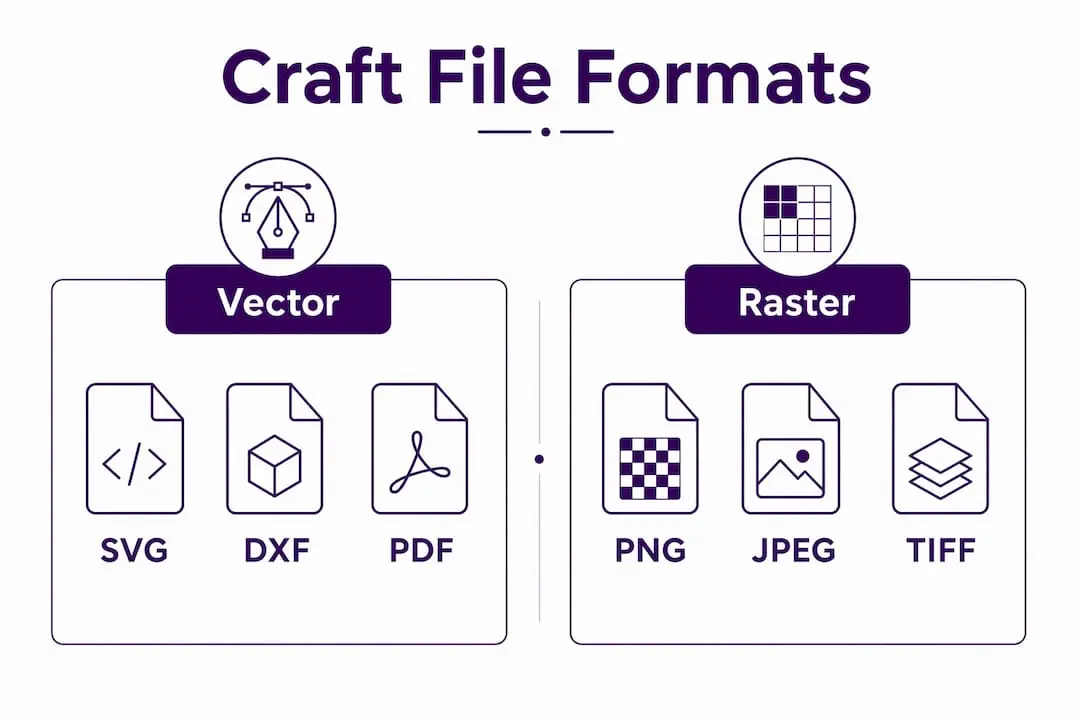
Vector files store designs as mathematical paths rather than pixels. This means they scale to any size without quality loss. SVG and DXF are both vector formats. Cutting machines rely on vector paths because the machine’s blade or laser follows those paths precisely. A vector circle tells the machine to cut a perfect arc. A raster circle is just a grid of coloured pixels, and the machine cannot follow it.
Laser cutters commonly accept multiple format types including SVG, DXF, AI, PDF, and PNG depending on the machine controller software. This flexibility is useful, but it also means you need to know exactly what your specific laser cutter expects. Sending a PNG to a laser cutter set up for vector cutting will produce an engraved image rather than a cut shape.
Raster files: best for printing and engraving textures
Raster files store designs as a grid of pixels. PNG, JPEG, and TIFF are raster formats. They are ideal for printing detailed photographic images and for laser engraving textures onto wood or acrylic. They are not suitable for cutting outlines. A raster file used for cutting will result in a rough, pixelated edge rather than a clean cut line.
| Attribute | Vector (SVG, DXF) | Raster (PNG, JPEG) |
|---|---|---|
| Scalability | Unlimited, no quality loss | Fixed resolution, degrades when enlarged |
| Best for | Cutting, engraving outlines | Printing, texture engraving |
| File size | Typically small | Can be large at high resolution |
| Machine compatibility | Cutting machines, laser cutters | Printers, laser engravers |
| Editability | Fully editable paths | Pixel-based, harder to edit |
Legacy vs modern 3D formats
DXF is a legacy format that has served the CNC and laser cutting world for decades. It remains widely supported, but it carries no colour or style data. For 3D printing, STL has played a similar legacy role. Both are reliable but limited. 3MF was developed specifically to address STL’s shortcomings. It bundles geometry, scale, colour, and material data into a single compressed file. For anyone working with modern 3D printers, 3MF is the better choice for reducing errors and improving workflow.
Common pitfalls with craft file formats and how to avoid them
File-related errors are the most common cause of wasted materials and failed projects in digital crafting. Most of them are avoidable with the right preparation.
-
Overlapping nodes and stray points. The cleanliness of vector path architecture is critical to successful cutting, sometimes more than the file format itself. Even a technically valid SVG will fail if its paths overlap, contain duplicate nodes, or include stray anchor points. Use the “clean up document” function in Inkscape or the “simplify path” tool in Adobe Illustrator before exporting.
-
Gradients and transparency in cutting files. Cutting machines follow paths, not visual effects. Gradients, drop shadows, and transparency are visual properties that have no meaning to a blade or laser. Remove all effects before saving your cutting file. Flatten the design to solid paths only.
-
Embedded raster images inside vector files. An SVG can technically contain an embedded JPEG or PNG. This is fine for screen display but problematic for cutting. File import failures and design distortions often occur because a file appears to be a vector format but contains raster content. Always check the file’s actual content, not just its extension.
-
Confusing craft file formats with the CRAFT Framework. The CRAFT Framework is a file-based AI prompt engineering system that is entirely unrelated to digital or physical craft file formats. It uses structured text files to manage AI workflows. If you search for “CRAFT file format” and land on AI-related results, you are in the wrong place.
-
Skipping format verification after conversion. Flattening designs and avoiding features like gradients or embedded images helps prevent common import errors. After any conversion, open the file in your design software and visually inspect every path before sending it to your machine.
Pro Tip: Save a master copy of every design in its original editable format (AI, AFPUB, or Inkscape SVG) before exporting to a machine-ready version. You will thank yourself the first time a client requests a size change or a machine update requires a different format.
Key takeaways
The right craft file format is determined by your machine’s native compatibility, not personal preference. SVG leads for cutting machines, 3MF leads for 3D printing, and PDF serves printable patterns best.
| Point | Details |
|---|---|
| SVG is the cutting machine standard | Cricut and Silhouette both read SVG natively, making it the safest choice for vinyl and paper cutting. |
| DXF suits legacy and laser systems | DXF carries geometry only, with no colour data, making it reliable for CNC and laser cutting workflows. |
| PDF works for printing, not always cutting | PDF is ideal for printable patterns but only functions as a cutting file if it contains true vector paths. |
| 3MF improves on STL for 3D printing | 3MF stores materials, scale, and settings alongside geometry, reducing errors in modern 3D printing projects. |
| Clean paths matter as much as format | Overlapping nodes and embedded raster images cause failures regardless of which format you choose. |
Why format knowledge changed how I approach every project
I have been working with digital craft files for long enough to remember when DXF was the only option most laser cutter owners had. The shift to SVG as the dominant cutting format felt significant at the time. Now, watching 3MF quietly replace STL in 3D printing circles feels like the same kind of shift.
What I have learnt from years of working with these formats is that the format itself is rarely the problem. The problem is almost always preparation. I have seen beautifully designed SVGs fail on a Cricut because the designer left in a gradient effect they forgot about. I have seen DXF files work perfectly on a laser cutter that supposedly “only accepts SVG” because the machine’s controller was more flexible than the manual suggested.
My honest advice is this: learn your machine’s actual behaviour, not just its stated specifications. Test formats on small sample files. Keep a folder of known-good test files for each machine you own. And never assume a file is ready just because it has the right extension.
The other thing worth saying is that format knowledge compounds. Once you understand why SVG works for cutting (mathematical paths, scalable, machine-readable), you immediately understand why a JPEG does not. Once you understand why 3MF beats STL (metadata, compression, completeness), you can make better decisions about your 3D printing workflow without needing to look it up every time.
Formats evolve. New machines bring new requirements. The crafters who stay ahead are the ones who understand the principles, not just the current list of accepted file types.
— Rob
Ready-to-use craft files from Craftsuprint
If you would rather spend your time creating than troubleshooting file formats, Craftsuprint has you covered. The platform offers thousands of craft file downloads ready for Cricut, Silhouette, and other popular machines, all prepared and tested for compatibility. From card-making kits to paper patterns and decorative templates, every file is designed to work straight out of the download.
New to the platform? Craftsuprint’s free members gift is a great place to start. You get access to free craft downloads and project files without spending a penny, which makes it easy to test formats and workflows before committing to a purchase. Browse the full range of craft supplies and tools to complete your crafting setup alongside your digital downloads.
FAQ
What is the best craft file format for a Cricut machine?
SVG is the best format for Cricut machines. Cricut Design Space imports SVG natively, preserving paths, colours, and layers for accurate cutting.
Can I use a PDF as a cutting file?
A PDF can work as a cutting file only if it contains true vector paths rather than embedded raster images. Always check the file’s content before sending it to a cutting machine.
What is the difference between SVG and DXF in crafting?
SVG stores paths, shapes, and colour data, making it ideal for cutting machines like Cricut and Silhouette. DXF stores geometry only with no colour, making it better suited to laser cutters and CNC machines.
What craft file format should I use for 3D printing?
3MF is the modern preferred format for 3D printing. It stores geometry, materials, scale, and settings in one file, improving on the older STL format which carries geometry only.
Is the CRAFT Framework the same as a craft file format?
No. The CRAFT Framework is an AI prompt engineering system that uses structured text files to manage AI workflows. It has no connection to digital crafting file formats such as SVG, DXF, or STL.