
Fix a Messy Collection in 30 Minutes: Name Digital Files for Crafters

Use YYYY-MM-DD_Project_Description_v01.ext as your default pattern: it sorts chronologically, plays nicely with every operating system, and stays readable to a human years later. Keep the file extension untouched, swap spaces for hyphens or underscores, and never lead a filename with a version number. Two small habits, one consistent format, and your files stop hiding from you.
TL;DR:
- Using ISO format dates at the start of filenames ensures proper chronological sorting across all systems.
- Incorporating key details like project name, descriptor, status, and version in a consistent order improves file retrieval.
- Using hyphens or underscores prevents system compatibility issues, and padded numerical sequences help maintain proper order.
- Avoid including sensitive information in filenames, such as personal IDs or confidential data, to protect privacy during sharing or storage.
- Batch renaming tools and clear conventions help correct inconsistencies in large existing collections more efficiently than manual reorganization.
Table of Contents
- Why does the way you name digital files matter?
- What are some good file name examples I can copy?
- How do folders and tags fit around your filenames?
- What tools help keep file names consistent?
- What common file naming mistakes should you avoid?
- A craftsperson’s perspective: naming downloadable craft files
- Best practices for multilingual or international characters in filenames
- Guidelines for keeping sensitive information out of filenames
- Where conventional file-naming advice falls short
- Where to find ready-named craft files and templates
- Sources
- FAQ
Why does the way you name digital files matter?
A filename is metadata that travels with the file no matter where it ends up. Move it to a new folder, email it to a client, or drop it into cloud storage, and the name is often the only clue left about what it actually is. That’s the whole argument for a proper file naming convention: it protects information the folder structure can’t guarantee to preserve.
Three rules do most of the heavy lifting.
- Start with the date, using ISO format. Writing dates as
YYYY-MM-DD(orYYYYMMDDif you want it tighter) means files sort correctly in chronological order on every system, unlike “12 March 2026” or “March 2026,” which sort alphabetically and scatter your timeline. Put the date first only when chronology is the thing you’ll search by; put the project name first if you’re more likely to search by client or theme. - Order the rest logically. After the date, a sensible sequence runs: project or client name, then a short descriptor, then status (draft, final), then version. So
2026-03-12_SmithWedding_Invoice_Final_v02.pdftells you everything before you’ve even opened it. - Avoid reserved characters and spaces. Characters like
# @ + % ! ? = * < > | " $ { } ; :cause real problems across different file systems, and spaces get turned into%20the moment a file hits a URL. Hyphens and underscores do the job cleanly. CamelCase (ProjectBudget) is a reasonable middle ground if you want readability without either character, though it’s marginally harder to scan at speed than underscores.
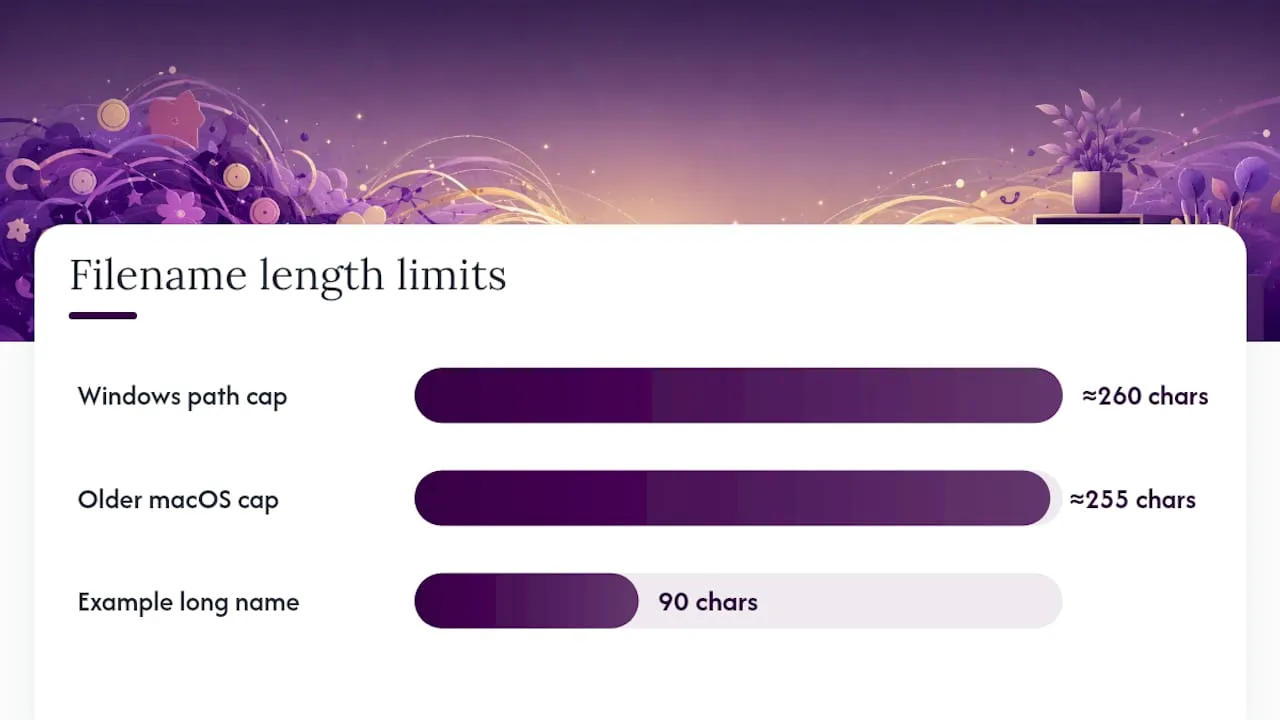
Length matters too, and not just for tidiness. Windows has historically capped the combined path and filename at around 260 characters, and older macOS limits sat near 255 for the filename itself. That’s still worth respecting, because a file buried six folders deep with a 90-character name can hit that ceiling and simply refuse to save, sync, or copy. Short but meaningful beats long and descriptive every time.
For anything with multiple versions or a running sequence, pad numbers with leading zeros: v01 rather than v1, Photo_003 rather than Photo_3. Without the zero, file_10 sorts before file_2 in most systems, because sorting works character by character rather than by numeric value. That single habit, backed by file-naming guidance from Data Carpentry, prevents a surprising amount of confusion in shared folders.
What are some good file name examples I can copy?
Templates work better than rules, because people copy formats they see rather than principles they read about once and forget. Here are patterns for the file types most people wrestle with.
- Invoices:
2026-03-12_ClientName_Invoice_v01.pdf— date first because you’ll search invoices by when they were issued, not what they’re about. - Photos:
2026-07-04_Barcelona_Beach_003.jpg— date, then event or location, then a padded sequence number so the whole holiday set stays in order. - Design assets:
RoseCard_Layout_Final_v03.psd— project first here, because you’re more likely to hunt for “the rose card file” than remember the exact date you worked on it. - Draft vs final files:
2026-02-01_Newsletter_Draft_v01.docxmoving to2026-02-01_Newsletter_Final_v04.docx— the status word removes any doubt about which copy to send. - Product downloads:
CS_ButterflyCard_Kit_v02.zip— a short product code plus descriptor plus version, so both you and a customer can identify exactly which release they’re holding.
One thing to never do: don’t rename a file by editing its extension. Changing .jpg to .png by hand doesn’t convert the image, it just breaks the file, because the extension tells your computer how to read the data inside, not what format that data is actually in. Only ever touch the part of the name before the final dot.
How do folders and tags fit around your filenames?
Filenames, folders, and tags each solve a different problem, and trying to make one do all three jobs is where most people’s systems fall apart.
- Use folders for the big, stable divisions. A “date-first” top-level structure (
2026/03-March/) suits anyone whose work is naturally chronological, like invoicing or photography. A “project-first” structure (Clients/Smith-Wedding/) suits anyone juggling several ongoing projects where the date is secondary. - Use filenames for the details that need to survive a move. If a file gets emailed, uploaded, or dragged out of its folder, only the filename travels with it. That’s why the date, project, and version belong in the name itself, not just in the folder path.
- Use tags for anything that cuts across your folder logic. Tagging tools such as TagSpaces let you group files by theme, like “holiday” or “urgent,” without duplicating them or forcing a rigid folder hierarchy to accommodate every possible category.
- When migrating a messy collection, batch by type first. Sort your existing files into rough categories, apply a bulk rename to one category at a time, and check a sample before you commit to the whole batch, since a rename applied to a thousand files with one wrong setting is a thousand mistakes, not one.
What tools help keep file names consistent?
Consistency is easier to enforce with a tool than with memory alone. Windows’ PowerRename (in PowerToys) and macOS’s built-in Finder batch rename both handle simple find-and-replace renaming across dozens of files at once, which covers most everyday needs.
- For anything more structured, dedicated batch renamers let you insert sequential numbers, strip characters, or apply a template across an entire folder in one pass.
- Cloud storage services like Google Drive and Dropbox generally tolerate spaces in filenames, but search and syncing tend to behave more reliably with hyphens or underscores, and version handling varies enough between platforms that it’s worth checking before you rely on it.
- Built-in tagging in Finder, Windows File Explorer, or a tool like TagSpaces adds a searchable layer without touching the filename itself.
- If you’re managing a genuinely large library, hundreds of design assets or thousands of product images, a proper digital asset management (DAM) system becomes worth the setup time, since spreadsheet-style tracking stops scaling long before your file count does.
What common file naming mistakes should you avoid?
Most naming problems come from a handful of repeat offenders, and they compound fast once more than one person is involved.
- Inconsistent abbreviations. “Inv,” “Invc,” and “Invoice” scattered across the same folder defeat search before it starts.
- Reserved characters and stray spaces. They cause the compatibility issues covered above and multiply when files move between systems.
- Missing version numbers. “Final,” “Final2,” and “Final_reallyfinal” is a familiar spiral with no clear winner.
- Names that run too long. Anything trying to describe the whole project in the filename usually just risks hitting a path length limit.
- Mixed conventions in shared folders. The moment two people use different patterns, search stops working for either of them. The fix is a one-page README stating the agreed convention, since documenting the rule is what actually gets it followed.
Pro Tip: Paste this into your shared folder’s README: date format is YYYY-MM-DD, elements are separated by underscores, versions use two digits (v01, v02), and no one changes file extensions manually. Five seconds to read, years of confusion saved.
A craftsperson’s perspective: naming downloadable craft files
Naming discipline matters most where customers meet your work, especially when managing your product libraries with Ecommerce Programmatic SEO: A Practical Rollout Playbook. A card kit listed as Kit_final2_USE_THIS.zip creates support tickets; the same file as CS_RoseCard_Kit_v02.zip tells a buyer and a support team exactly what they’re holding, without a single message exchanged. Reused templates and layered craft file formats only stay usable if the naming underneath them stays predictable, and that’s a lesson worth applying to your own digital downloads long before you ever sell one.
Best practices for multilingual or international characters in filenames
Accented and non-Latin characters, café, Zürich, 東京, generally display fine on modern systems, but they still cause real friction the moment a file crosses platforms, gets zipped, or lands on an older server. Some archive formats and web servers mishandle UTF-8 characters, turning “café” into a string of broken symbols on the receiving end.
The safest approach for anything you’ll share widely: keep the filename itself in plain ASCII characters, and put the localised or accented version inside the document or in a tag instead. 2026-03-12_Cafe_Project_v01.pdf survives every system; 2026-03-12_Café_Project_v01.pdf might not, depending on where it’s opened. If you’re working entirely within one language and one ecosystem, for instance a Japanese design team on a shared Japanese-language server, native characters are usually fine, since the risk comes from crossing systems, not from the language itself.
Where you do need international characters, avoid mixing scripts within a single filename, keep the file extension in standard Latin characters regardless of the rest, and test a file with international characters in it before you rely on the convention across your whole collection. It’s a five-minute check that saves a much longer troubleshooting session later, especially for anyone selling files internationally or collaborating across borders.
Guidelines for keeping sensitive information out of filenames
Filenames get copied into far more places than most people realise: email subject lines, cloud sharing links, browser download histories, server logs, and search indexes. Anything written into a filename should be treated as something that could be seen by someone who was never meant to see it.
Names like JohnSmith_Passport_1234567.pdf, Client_NHS_Number_123456789.docx, or Password_Reset_MyBank.txt are far more common than they should be, and every one of them leaks confidential information the instant the file is shared, backed up, or indexed by search. The rule of thumb: if the information would be sensitive on a business card, it’s sensitive in a filename.
Practical substitutes:
- Use a client reference number or initials instead of a full name where a system allows it.
- Keep sensitive detail (national insurance numbers, financial account numbers, health information) inside the document, protected by whatever access controls the file itself supports, never in the name.
- Avoid words like “confidential,” “private,” or “salary” in a filename. It doesn’t protect the file, it just flags it as worth opening to anyone browsing a shared drive.
- For anything genuinely sensitive, encrypt the file itself rather than relying on an obscure filename as security. A name is not a lock.
Where conventional file-naming advice falls short
Most guides on this topic overload the filename. They’ll suggest eight or nine elements, date, client, project, subproject, department, status, version, initials, until the name is technically informative and practically unreadable. The research on this is consistent: a simple pattern applied without exception beats an elaborate one that gets abandoned by week three.
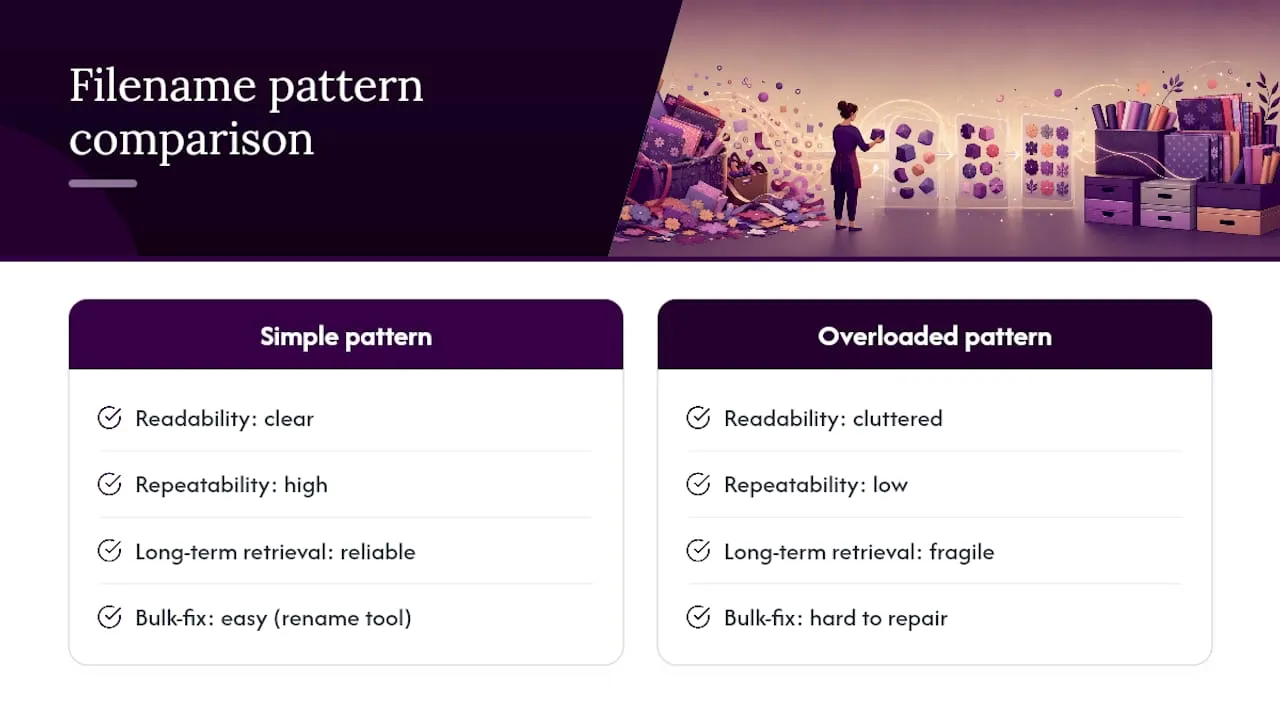
The other gap in conventional advice is timing. Most articles assume you’re naming files from scratch, but the real pain point for most readers is an existing folder of two thousand inconsistently named files. That’s where a bulk rename tool and thirty minutes of sorting by type matter more than any theoretical naming philosophy.
If you take one thing from this, prioritise the date field and the underscore-versus-space rule before anything else. Those two choices fix more retrieval problems than the rest of the convention combined, and they’re the two habits worth building before you worry about tags, metadata, or anything more elaborate.
— Rob
Where to find ready-named craft files and templates
Many card kits, cutting files, and paper craft downloads from various sources are organised and labelled clearly, so you spend your time crafting rather than untangling a folder of finalfinal2 files. If you’re building a template library of your own, browse the card making section for kits that follow a consistent, predictable structure from the moment you download them, or check the cutting files downloads for SVG and die cut assets ready to drop straight into your project folders. It isn’t the only route to a well-organised craft library, but it can be a quick one: download, and the naming work is already done. Browse a category, add a kit to your collection, and see how it slots into your own system without needing to rename files.
Sources
- Naming conventions - File Management - Library Guides at Iowa State University
- Best Practices for File Naming and Organizing
- Data Carpentry — file-naming guidance
- TagSpaces — tagging and metadata tool
- How to Name Your Digital Files So You Can Find What You Need
FAQ
How do I name a downloaded file?
Rename it the moment it lands using a short, consistent pattern such as 2026-03-12_ProjectName_Description_v01, keeping the original file extension untouched. This stops your downloads folder filling up with generic names like “document(3).pdf” that tell you nothing later.
What are some good examples of file names?
Strong examples include 2026-07-04_Barcelona_Beach_003.jpg for photos, 2026-03-12_ClientName_Invoice_v01.pdf for invoices, and CS_RoseCard_Kit_v02.zip for a product download. Each one leads with whichever detail, date or project, you’re most likely to search by first.
What is it called when you name a file according to a set pattern?
This is called a file naming convention, a documented, repeatable pattern applied across a folder or collection. Getting the pattern right matters far less than applying it consistently every single time you save a file.
How do you decide what to include in a file name?
Order elements by what you’ll actually search for first: date, project or client, a brief descriptor, status, and version, in that sequence. Anything more cross-cutting than that, like theme or urgency, belongs in a tag rather than the filename itself.